Whether you are collecting points, boosting your view counts, or just sharing something beautiful, Local Guides love to add photos to Google Maps. After 10+ years in the photo industry I’m happy to be a part of Local Guides and have the opportunity to share my tips on creating better photo content.
First, we’ll kick it off with some tips on how to shoot the best photos possible. No matter what kind of camera you have, you can use these tips and tricks to create more engaging images.
Extreme Camera Angles
Bird’s eye view and worm’s eye view aren’t great when you’re capturing a building’s exterior or interior. We want to see the entire building rather than tight crops and odd angles.
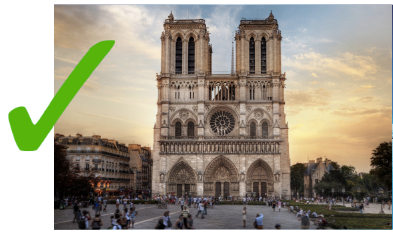
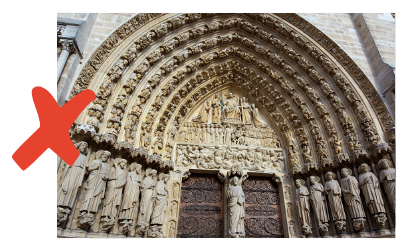
However, if you’re shooting food or details of places/things, feel free to play with angles!
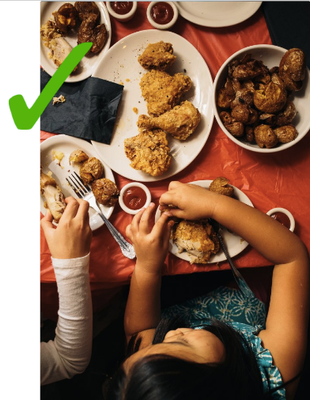
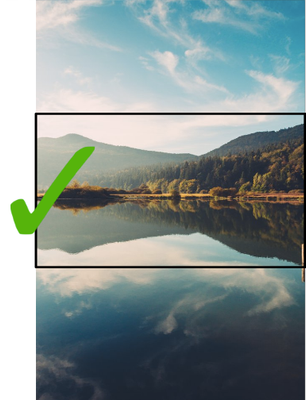
Horizontal shots are best
but vertical is acceptable if the image looks just as good cropped horizontally.
There should be an obvious point of interest
Users should immediately understand what they are looking at.
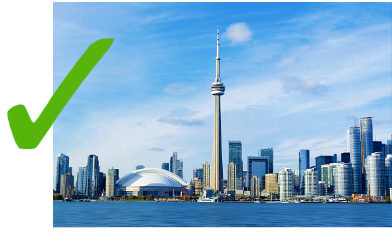
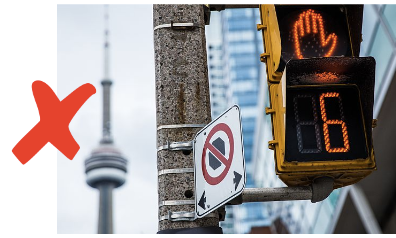
Sharp High Contrast Images
Avoid blurry hard to decipher images of a place
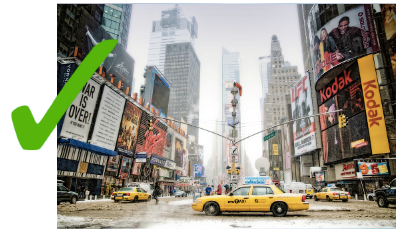
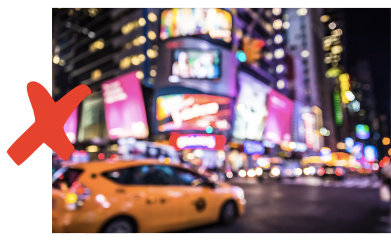
Don’t fake it!
Images should POP but look real. Don’t over saturate or photoshop your images too much.
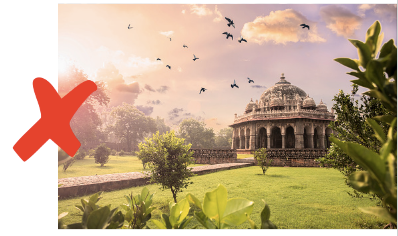
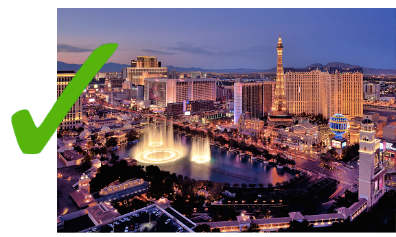
Day vs. Night photos
Most places should be shot during the day unless they are well known for their night life.
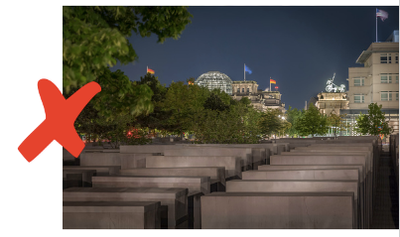
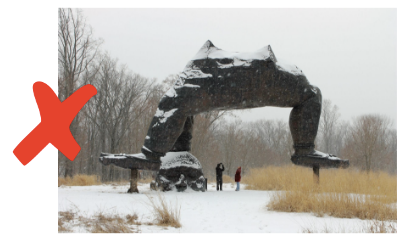
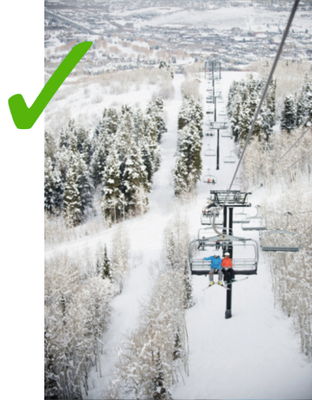
Seasonally Agnostic
Places should be recognizable and not impacted by season/weather. (Stark winter shots, colorful fall shots, etc.)
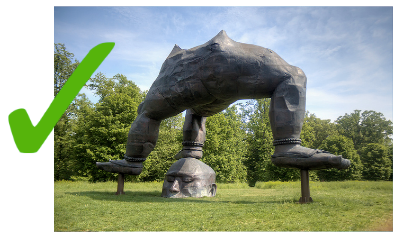
UNLESS, a place is seasonal or defined by a season, like ski slopes!
Rules of Uploading to Google Maps
Just as important as taking good photos, knowing the rules of uploading images to Google Maps will help to ensure you earn and keep those Local Guides points.
Things to Avoid:
- Intellectual Property Violations: We don’t allow images or any other content that infringes on anyone else’s legal rights, including copyright. This means, if it’s not your photo, don’t upload it! For more information, review our copyright procedures.
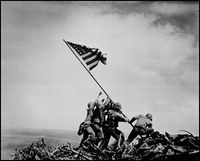
Someone gave me this photo, doesn’t that make it mine? Nope!
I saw it online and thought it belonged on Google Maps. Can I put it there? Unfortunately no. The owner must post it.
It’s an old photo. I’m sure that the copyright is no longer alive. Can I post it? Although there is a limitation on copyright over time, you should not post these images.
- Spam: Images that have been uploaded repetitively, are excessively promotional, or that contain text superimposed over a large section of the image will be removed.
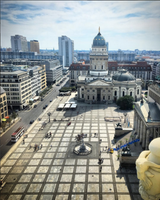
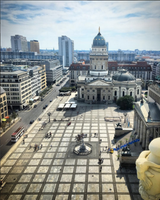
Just upload one!
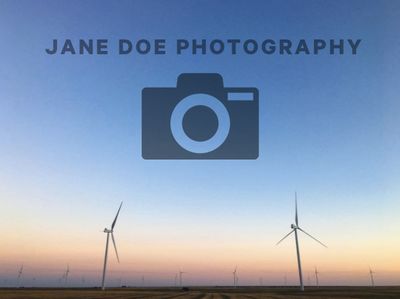
- Avoid large watermarks on images

- Sexually explicit content
- Illegal, dangerous, or violent content
- Child endangerment
- Harassment and threats
- Personal or confidential information
- Invasion or Privacy: Try to avoid posting photos where the main subject is an individual person.
Terms of Service
Whenever you upload anything to Google Maps, you are agreeing to our Terms of Service. Make sure you review these terms if you have any concerns over how and where your images will be used.
Photos must be added to a specific place on Google Maps to count for Local Guides points.
While that landscape photo might be beautiful, any photos you add to a place on Google Maps should be representative of that specific place.
Comments
Post a Comment